


You built a WooCommerce store. You picked the theme, uploaded the products, set up the payment gateway, and launched — but hidden WooCommerce mistakes may already be holding your store back. And then you waited for the sales to roll in.
But they didn’t.
Sound familiar? You’re not alone. Thousands of WooCommerce store owners are in exactly the same position right now — staring at their analytics dashboard, watching visitors arrive and leave without buying a single thing.
The painful truth is this: most WooCommerce mistakes are invisible. You can’t see them by just looking at your store. They’re buried in your site speed, your product descriptions, your checkout flow, your SEO settings. And every day you don’t fix them, they’re quietly costing you money.
In this post, we’re going to break down the 10 most damaging WooCommerce mistakes that are holding your store back — and give you the exact steps to fix each one. Whether you’re dealing with low WooCommerce sales, poor search rankings, or a high cart abandonment rate, you’ll find your answer here.
Let’s get into it.
Why Your WooCommerce Store Isn’t Getting Sales
Here’s something most blog posts won’t tell you: having a WooCommerce store and having a successful WooCommerce store are two completely different things.
Setting up the store is the easy part. WooCommerce handles the technical infrastructure beautifully. But the store itself is just a framework — and if you don’t actively optimize it for both search engines and human psychology, it simply won’t perform.
The gap between “a store that exists” and “a store that generates consistent revenue” is almost always explained by a set of hidden eCommerce conversion problems that most store owners never think to look for.
These aren’t dramatic failures. They’re small, quiet mistakes that compound over time — a slow load here, a confusing checkout there, no reviews on that page, no tracking anywhere. Together, they add up to a store that leaks potential customers at every step.
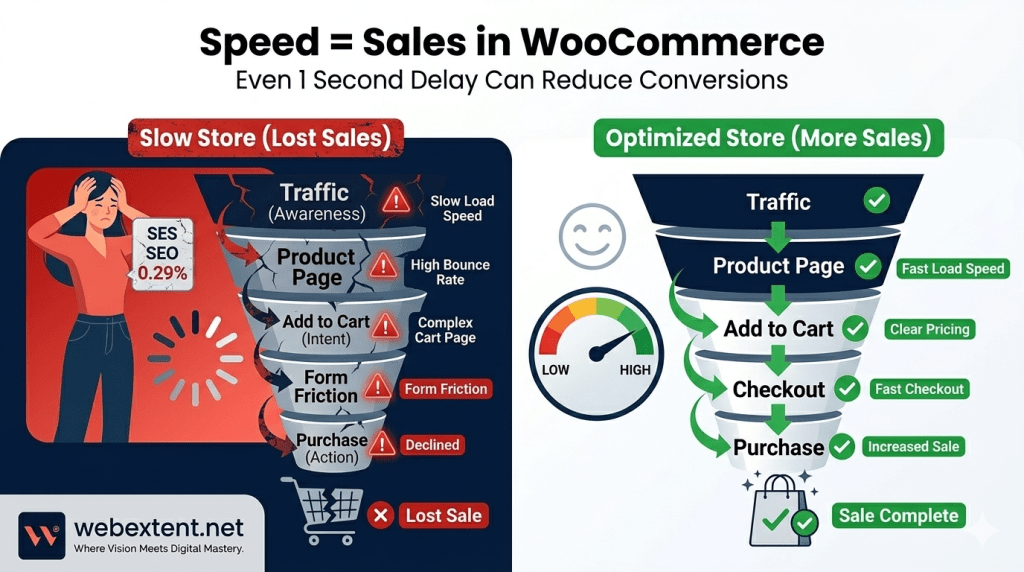
Here’s a simple way to think about it as a conversion funnel:

| Funnel Stage | Stage | Where Mistakes Break the Flow |
| 1 | Traffic Arrives | Slow speed + poor SEO = visitors never arrive or immediately leave |
| 2 | Product Page View | Weak descriptions + no trust signals = no confidence to buy |
| 3 | Add to Cart | Poor mobile UX + no urgency = hesitation and abandonment |
| 4 | Checkout | Complex process + forced registration = cart abandonment |
| 5 | Purchase Complete | No upsells + no tracking = missed revenue and no data to improve |
Every mistake on our list breaks the funnel at a specific point. When you fix them, you don’t just improve one step — you improve the entire customer journey from first click to final purchase.
The 10 WooCommerce Mistakes Destroying Your Sales
❌ Mistake #1: Your Website Loads Like It’s on Dial-Up
Imagine this: a customer hears about your store from a friend. They’re genuinely interested, they click the link, and then they wait. And wait. And wait. After four seconds of nothing, they close the tab and buy from your competitor instead.
This happens thousands of times every single day to WooCommerce stores with slow load times. And most store owners have no idea it’s even happening.
Page speed is one of the biggest WooCommerce SEO mistakes you can make. Google uses Core Web Vitals as a ranking factor, which means a slow site doesn’t just frustrate users — it literally buries you in search results.
😟 Why It Hurts: Google has confirmed that even a one-second delay in page load time can reduce conversions by up to 7%. On mobile, 53% of visitors abandon a site that takes more than 3 seconds to load. That’s more than half your potential customers gone before they even see your products.
✅ How to Fix It:
- Switch to a lightweight, performance-optimized WooCommerce theme (like Astra or GeneratePress).
- Use a caching plugin like WP Rocket or LiteSpeed Cache.
- Compress and convert images to WebP format using ShortPixel or Imagify.
- Enable a CDN (Content Delivery Network) like Cloudflare.
- Upgrade your hosting to a managed WooCommerce host (SiteGround, WP Engine, or Kinsta).
- Run your site through Google PageSpeed Insights or GTmetrix and fix the flagged issues.
| 💡 Pro Tip: Your theme choice alone can account for a 30–50% difference in load time. Many stores use bloated multipurpose themes that look impressive but destroy performance. A fast, minimal theme + good hosting = a massive competitive advantage. |
❌ Mistake #2: Product Descriptions That Say Nothing
Here’s a real scenario: someone searches for “waterproof hiking boots for men” and clicks on your product. They land on a page that says: “Premium hiking boots. Available in sizes 7-12. High quality material.”
That tells them absolutely nothing. No benefits. No story. No reason to buy. So they hit the back button and find a competitor who actually described what the boots feel like after a 10-mile hike in the rain.
Poor product descriptions are a dual killer — they hurt your WooCommerce SEO because there isn’t enough keyword-rich content, and they fail to convert because they don’t speak to what the customer actually cares about.
😟 Why It Hurts: Thin product content is flagged by Google as low-quality, which reduces your rankings. Meanwhile, customers need information to feel confident enough to buy. Without that confidence, they leave.
✅ How to Fix It:
- Write at least 200–300 words per product description.
- Lead with the key benefit, not just the feature (“Stay dry on the trail” not “Waterproof material”).
- Use your primary product keywords naturally throughout the description.
- Address customer concerns: durability, sizing, materials, care instructions.
- Add a short FAQ section for each product answering common questions.
| 💡 Pro Tip: Think of your product description as a virtual salesperson. It needs to answer the question your customer is secretly asking: “Why should I buy this instead of something cheaper?” Answer that clearly, and conversions go up. |
❌ Mistake #3: Ignoring Keyword Optimization Entirely
This is where most store owners fail. They launch their WooCommerce store, add their products, and then just… wait. They wait for traffic that never comes because Google has no idea what their pages are about.
WooCommerce SEO mistakes around keyword optimization are incredibly common. Store owners use vague product titles, skip meta descriptions, and write category pages with no text at all. Then they wonder why their WooCommerce store isn’t getting sales.
😟 Why It Hurts: Without proper keyword optimization, your product pages compete in the dark. You’re not telling Google what you sell, who it’s for, or why someone should find you. The result? You rank for nothing and get found by no one.
✅ How to Fix It:
- Research keywords using tools like Ahrefs, Semrush, or the free Google Keyword Planner.
- Optimize your product page title tags: include your main keyword naturally.
- Write unique meta descriptions (under 156 characters) for every product and category page.
- Add your primary keyword in the first paragraph of each product description.
- Optimize image file names and alt text with descriptive, keyword-rich text.
- Use Yoast SEO or Rank Math to guide your on-page optimization.
| 💡 Pro Tip: Long-tail keywords often convert better than broad terms. “Buy organic face moisturizer for sensitive skin” converts far better than just “moisturizer” — and it’s also much easier to rank for. |
❌ Mistake #4: A Checkout Process That Drives Customers Away
Think about the last time you tried to buy something online and had to create an account, fill in six pages of forms, verify your email, and then re-enter your card details because the page timed out. Frustrating, right?
That’s exactly what your customers feel when your WooCommerce checkout is complicated. Cart abandonment rates average around 70% globally — and a confusing checkout is one of the top reasons. This is a classic eCommerce conversion problem hiding in plain sight.
😟 Why It Hurts: Every extra step in checkout is a chance for the customer to change their mind. Forced account creation alone increases abandonment by up to 35%. A clunky checkout is actively destroying sales you’ve already almost made.
✅ How to Fix It:
- Enable guest checkout — never force account creation before purchase.
- Reduce checkout to one page using a plugin like WooCommerce One Page Checkout.
- Remove unnecessary form fields (do you really need their phone number twice?).
- Offer multiple payment options: credit card, PayPal, Apple Pay, local payment methods.
- Show a clear progress indicator so customers know how close they are to done.
- Display security badges and SSL indicators prominently during checkout.
| 💡 Pro Tip: A/B test your checkout page. Even small changes — like moving the “Place Order” button above the fold or changing its color — can increase completions by 10–20%. |
❌ Mistake #5: Your Store Looks Terrible on Mobile
Over 60% of eCommerce traffic now comes from mobile devices. If your WooCommerce store isn’t fully optimized for mobile, you are actively pushing more than half your visitors toward the exit.
Mobile optimization isn’t just about making sure the page fits on a small screen. It’s about tap targets being big enough, images loading fast, product galleries that swipe smoothly, and add-to-cart buttons that are easy to press. Most stores get the basics right but fail on the details — and that’s where conversions die.
😟 Why It Hurts: Google uses mobile-first indexing, meaning your mobile site is the primary version Google evaluates for rankings. A poor mobile experience hurts both SEO and conversions simultaneously. This is one of the most damaging WooCommerce optimization mistakes you can make.
✅ How to Fix It:
- Choose a fully mobile-responsive WooCommerce theme.
- Test your store using Google’s Mobile-Friendly Test tool.
- Ensure buttons and tap targets are at least 48x48px.
- Test the full purchase journey on a real mobile device.
- Optimize images specifically for mobile load times.
- Enable sticky add-to-cart buttons for mobile product pages.
| 💡 Pro Tip: Use real devices, not just browser emulators. Mobile browsers behave differently from desktop simulators, and you’ll catch issues in real testing that tools won’t show you. |
❌ Mistake #6: Duplicate and Thin Content Across Your Store
This one is sneaky. You might not even realize you’re doing it. WooCommerce can generate duplicate content automatically through URL parameters, tag pages, category filters, and product variations. Each duplicate URL competes against your original and dilutes your ranking potential.
Thin content — pages with very little meaningful text — is another major WooCommerce SEO issue. Category pages with just a product grid and no description, or tag pages with a handful of items and no context, signal low quality to Google.
😟 Why It Hurts: Google’s Panda algorithm penalizes sites with duplicate or thin content. Your pages get devalued, your rankings drop, and your organic traffic dries up.
✅ How to Fix It:
- Set up canonical URLs for all product and category pages.
- Use Yoast SEO to noindex tag pages and low-value archive pages.
- Write unique descriptions for every category page (minimum 150–200 words).
- Handle URL parameters correctly through Google Search Console.
- Audit your site with Screaming Frog or Semrush to identify duplicate content issues.
| 💡 Pro Tip: Every category page is a landing page opportunity. Instead of leaving it empty, write a helpful intro paragraph that includes your target keyword naturally. It improves SEO and helps customers understand what they’re browsing. |
❌ Mistake #7: No Trust Signals — You’re Asking Strangers to Trust You
Let’s be honest — your customer doesn’t know you. They’ve never met you, never held your product, and have no idea if they’ll get what they paid for. When they land on your store, they’re quietly asking: “Can I trust this place?”
If your store has no reviews, no security badges, no money-back guarantee visible, no real contact information — their answer is no. And they leave. This is a massive eCommerce conversion problem that’s completely fixable.
😟 Why It Hurts: Studies show that 88% of consumers trust online reviews as much as personal recommendations. Stores without visible trust signals see significantly higher bounce rates and lower conversions. Trust is the invisible currency of eCommerce.
✅ How to Fix It:
- Enable and actively collect customer reviews on every product page.
- Display SSL and security badges prominently near checkout.
- Add a clear, easy-to-understand returns and refund policy.
- Show your contact information — a real email, phone number, or live chat.
- Add a money-back guarantee badge near the add-to-cart button.
- Display how many customers have purchased or reviewed the product.
| 💡 Pro Tip: Real photos from real customers — even imperfect ones — build more trust than professional product shots. If you can get customers to submit photos in reviews, use them. Authenticity sells. |
❌ Mistake #8: Poor Internal Linking Structure
Internal linking is one of the most underrated WooCommerce optimization tips — and one of the most neglected. When your product pages, category pages, and blog posts don’t link to each other intelligently, you’re leaving both SEO value and sales on the table.
Here’s the problem: Google crawls your site by following links. If your pages are isolated islands with no connections, Google can’t understand the structure of your store and can’t pass authority between pages effectively. Meanwhile, customers who land on one product have no guidance toward related products or helpful content.
😟 Why It Hurts: Poor internal linking means your high-authority pages can’t share their SEO strength with your newer or weaker pages. It also means you miss cross-sell and upsell opportunities that could increase your average order value.
✅ How to Fix It:
- Enable WooCommerce’s built-in related products section.
- Add “Frequently Bought Together” or “You May Also Like” sections using a plugin.
- From your blog posts, link naturally to relevant product or category pages.
- From product descriptions, link to related categories or complementary items.
- Create a clear navigation structure: homepage → category → subcategory → product.
| 💡 Pro Tip: Think of internal links as guided pathways through your store. Every click is an opportunity to keep a customer engaged. The longer they browse, the more likely they are to buy. |
❌ Mistake #9: Flying Blind Without Analytics or Conversion Tracking
Here’s a question: do you know where your best customers come from? Do you know which product pages have the highest exit rate? Do you know your cart abandonment rate, or which traffic source actually converts into sales?
If your answer is “no” or “I’m not sure,” you’re flying completely blind. This is one of the most expensive WooCommerce mistakes a store owner can make, because without data, every decision is just a guess.
😟 Why It Hurts: Without analytics, you can’t identify what’s working, what’s broken, or where you’re losing customers. You end up pouring money into marketing that doesn’t convert, and you never know why.
✅ How to Fix It:
- Install Google Analytics 4 (GA4) with WooCommerce eCommerce tracking enabled.
- Set up Google Search Console and connect it to your site.
- Enable enhanced eCommerce tracking to monitor the full conversion funnel.
- Track micro-conversions: add-to-cart clicks, checkout initiations, form submissions.
- Use heatmapping tools like Hotjar or Microsoft Clarity to see how users interact with your pages.
- Set up monthly reporting to review performance and identify trends.
| 💡 Pro Tip: GA4’s Funnel Exploration report is a goldmine. It shows you exactly where customers drop off between browsing and buying. Fix the biggest drop-off point and watch your conversions improve almost immediately. |
❌ Mistake #10: Plugin Overload and Poor Site Optimization
Every plugin you install promises to solve a problem or add a feature. And before you know it, you’ve got 40 active plugins, half of which conflict with each other, slow down your site, and create security vulnerabilities.
This is one of the most overlooked WooCommerce optimization tips: less is often more. A store with 15 well-chosen, well-configured plugins will almost always outperform a store with 45 plugins installed “just in case.”
😟 Why It Hurts: Plugin overload causes slow load times, JavaScript conflicts, CSS bloat, and in worst cases, white-screen-of-death errors after updates. It’s also a serious security risk — outdated plugins are the number one cause of WooCommerce hacks.
✅ How to Fix It:
- Audit all your installed plugins — deactivate and delete anything you’re not actively using.
- Replace multiple single-purpose plugins with one comprehensive solution where possible.
- Keep all plugins updated regularly.
- Use a staging site to test new plugins before installing on your live store.
- Review plugin performance using Query Monitor to identify slow or resource-heavy plugins.
- Run a security scan with Wordfence or Sucuri regularly.
| 💡 Pro Tip: The question to ask before installing any plugin is: “What problem does this solve, and is there a lighter-weight way to solve it?” Sometimes a small CSS snippet or a built-in WooCommerce setting can replace an entire plugin. |
Quick WooCommerce Optimization Checklist

Use this checklist to audit your store right now. If you can tick off every item, you’re in great shape. If you find gaps, you know exactly where to focus first.
- ☐ Page load time under 3 seconds (test with GTmetrix or PageSpeed Insights)
- ☐ Mobile-responsive design tested on real devices
- ☐ Product descriptions are 200+ words, keyword-rich, and benefit-focused
- ☐ SEO title and meta description set for every product and category page
- ☐ Guest checkout enabled and checkout process simplified
- ☐ Trust signals visible: reviews, security badges, return policy
- ☐ Google Analytics 4 installed with WooCommerce eCommerce tracking
- ☐ Internal links connect related products, categories, and blog content
- ☐ Canonical URLs set and duplicate content issues resolved
- ☐ Plugin count audited — only essential, updated plugins active
- ☐ Image alt text written for every product image
- ☐ Google Search Console connected and sitemap submitted
How Webextent Helps Fix These WooCommerce Mistakes
At Webextent, we don’t just build WooCommerce stores — we optimize them for real sales and growth. We’ve seen every mistake on this list up close, and we know exactly how to fix them.
Here’s what working with Webextent looks like in practice:
Speed & Performance Optimization: We audit your hosting, theme, and plugin stack and implement targeted fixes to get your load time under 2 seconds — often without switching hosting providers.
WooCommerce SEO Strategy: From keyword research to on-page optimization, we build a search strategy that gets your products in front of people actively looking to buy.
Conversion-Focused Design: We redesign product pages, category pages, and checkout flows with one goal in mind: turning more of your existing visitors into paying customers.
Trust Signal Implementation: We build out your reviews system, add trust badges, clean up your returns policy, and make sure every customer feels confident clicking that buy button.
Analytics & Tracking Setup: We implement full GA4 eCommerce tracking, connect Search Console, and set up monthly reporting so you always know what’s working and what needs attention.
Ongoing WooCommerce Maintenance: We keep your store updated, secure, and optimized — so you can focus on running your business instead of worrying about plugins, security patches, and technical issues.
Every store we work on is different. Some need a complete speed overhaul. Others just need their checkout fixed and some trust signals added. We start with a thorough audit — no assumptions, no cookie-cutter solutions.
❓ Frequently Asked Questions
❓ What are WooCommerce mistakes?
WooCommerce mistakes are common errors store owners make such as poor site speed, weak product pages, bad SEO setup, and complicated checkout processes that reduce sales and conversions.
❓ Why do WooCommerce mistakes affect sales?
WooCommerce mistakes directly affect sales because they create friction in the buying process, reduce trust, and make it harder for customers to complete purchases.
❓ How can I fix WooCommerce mistakes?
You can fix WooCommerce mistakes by optimizing website speed, improving product descriptions, simplifying checkout, and setting up proper SEO and analytics tracking.
❓ What is the most common WooCommerce mistake?
One of the most common WooCommerce mistakes is ignoring website performance, which leads to slow loading times and high cart abandonment rates.
❓ Can WebExtent help fix WooCommerce mistakes?
Yes. WebExtent helps identify and fix WooCommerce mistakes by optimizing speed, SEO, checkout flow, and overall conversion performance for better sales results.
Final Thoughts: Small Mistakes, Big Losses
If you’ve made it to the end of this post, you now have something most WooCommerce store owners don’t: a clear picture of exactly what’s holding your store back.
The common WooCommerce mistakes those are killing sales are not dramatic disasters. They are quiet, steady drains on your traffic, conversions, and revenue. The good news? Every single one of them is fixable.
You don’t need to fix all ten at once. Start with your biggest leak — whether that’s site speed, checkout complexity, or missing analytics — and improve step by step. Every fix you make compounds into better performance and higher sales.
And if you’d rather not figure it out alone, WebExtent is here to help.
| 🚀 Ready to Find Out What’s Holding Your Store Back? Not sure which of these WooCommerce mistakes is affecting your store the most? Let WebExtent analyze and optimize your WooCommerce store for real results. We offer a free initial consultation where we identify your biggest conversion blockers and show you exactly how to fix them. 👉 Reach out to the WebExtent team today — your next sale is closer than you think. |
Subscribe to Us on YouTube
Get exclusive tutorials, behind-the-scenes content, and expert insights delivered directly to your feed.
We Are Available On:
Facebook:
https://facebook.com/webextent.net/
Instagram:
https://www.instagram.com/webextentofficial/
Twitter (X):
https://twitter.com/WebExtent
Tags: conversion rate optimization digital marketing eCommerce tips online store optimization WooCommerce woocommerce sales WooCommerce SEO WordPress tips

0 comments