


If you have ever peeked behind the scenes of a WordPress website, you may have noticed a collection of files and folders that can look a little overwhelming at first glance. That is completely normal. Understanding the WordPress file structure does not require you to be a developer — but having a basic grasp of how everything is organised can save you a lot of time and stress down the road.
Whether you are a blogger, a small business owner, or someone who just set up their first website, knowing where key files live and what they do gives you greater confidence when something goes wrong or when you need to make a change. It also helps you make smarter decisions about the security and performance of your site.
This guide is designed for WordPress beginners and website owners who want a clear, plain-English explanation of the WordPress directory structure — without the technical jargon. Companies like WebExtent, which specialises in helping businesses manage and maintain WordPress websites, often find that clients who understand even the basics of their site’s file structure are far better equipped to communicate issues and avoid costly mistakes.
Let us walk through everything you need to know.
What Is the WordPress File Structure?
WordPress is powered by two things working together: files and a database. The database stores your content — things like blog posts, pages, comments, and settings. The files, on the other hand, contain the code that makes WordPress run, along with your themes, plugins, and media uploads.
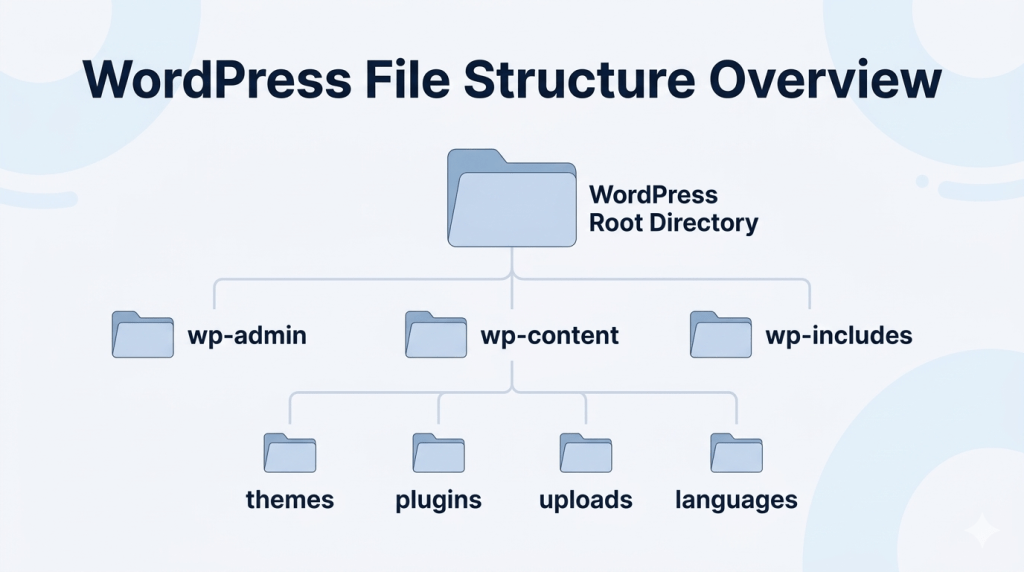
The WordPress file structure refers to the way these files are organised into folders on your web server. Think of it like the filing cabinet behind your website. Each drawer and folder has a specific purpose, and knowing where things are stored helps you manage your site more effectively.
When you install WordPress, it creates a specific set of folders and files automatically. These are consistent across every WordPress installation, which is one of the reasons WordPress is so widely used and well-supported.
Where Are WordPress Files Located?
Your WordPress files are stored on your web hosting server. Most hosting providers give you access to these files in one of two ways: through the File Manager inside your hosting control panel (such as cPanel), or via an FTP (File Transfer Protocol) client like FileZilla.
When you connect to your server, you will typically see a folder called public_html (sometimes called www or htdocs, depending on your host). This is your root directory — the main folder where your website files are stored. Your entire WordPress installation lives inside this folder.
If you have installed WordPress in a subdirectory (for example, yoursite.com/blog), then your WordPress files will be inside a subfolder within public_html rather than at the top level.
WordPress Root Directory Explained
When you open your root WordPress directory, you will see a mix of files and three main folders. The files at this top level are important core files that WordPress depends on to load and function correctly. Here are the key ones you should know about.
index.php
This is the entry point of your WordPress site. When someone visits your website, the server first loads index.php. It is a small but critical file that tells WordPress to start loading everything else.
wp-config.php
This is one of the most important files in any WordPress installation. It contains your database connection details, security keys, and other key configuration settings. Because it holds sensitive information, it is a common target for hackers — which is why protecting it is a top security priority.
wp-load.php
This file is responsible for bootstrapping WordPress. It loads wp-config.php and sets up the core WordPress environment so that everything else can function.
wp-settings.php
This file does the heavy lifting of setting up WordPress. It loads core files, registers default filters and actions, includes active plugins, and initialises the WordPress environment.
.htaccess
This is a server configuration file used by Apache-based hosting. WordPress uses it to manage your site’s permalink structure (the format of your page URLs). It can also be used to add security rules and improve performance. Note that this file is hidden by default — you may need to enable the option to show hidden files in your FTP client.
The Three Core WordPress Folders
Inside your WordPress directory structure, you will find three main folders. Each one serves a distinct purpose.
1. wp-admin
This folder contains all the files that power the WordPress admin dashboard — the backend you log in to when managing your site. It includes the code for everything from the post editor and media library to the settings and plugin pages.
You should never need to edit anything inside wp-admin. Modifying these files can break your entire dashboard. This folder is also a frequent target for brute-force login attacks, which is why securing access to it is an important part of WordPress security.
2. wp-content
This is the folder you will interact with most as a website owner. It stores all of your user-generated content and customisations. Inside wp-content, you will find these important subfolders:
- themes — Contains all installed WordPress themes. Each theme has its own subfolder here.
- plugins — Stores all your installed plugins. Each plugin has its own folder with its associated files.
- uploads — This is where all the images, videos, and other files you upload through the WordPress media library are saved. Files are organised by year and month.
- languages — Contains translation files that allow WordPress and your plugins and themes to display content in different languages.

Since wp-content holds your themes, plugins, and media, it is the one folder you are most likely to back up, migrate, or access directly. When you move a WordPress site to a new server, this folder comes with you.
3. wp-includes
This folder contains the core WordPress libraries and functions — essentially, the engine that makes WordPress work. It includes files for handling everything from post formatting and user authentication to REST API responses and template loading.
Like wp-admin, you should not edit any files in wp-includes. This folder is completely replaced every time you update WordPress, so any changes you make will be lost.
Common WordPress Files Developers Use
Inside your active theme folder (found at wp-content/themes/your-theme-name), you will find several files that control the look and behaviour of your website. Here are the most commonly referenced ones.
- functions.php — This file acts like a plugin for your theme. It is used to add custom functionality, register menus and widgets, load styles and scripts, and modify WordPress behaviour.
- style.css — The main stylesheet for your theme. It contains the CSS that controls your site’s visual design. It also includes the theme header comment at the top, which tells WordPress the theme name, author, and version.
- header.php — This file controls what appears at the top of every page on your site — typically the logo, navigation menu, and opening HTML tags.
- footer.php — This handles the bottom section of your site, including the closing HTML tags, copyright text, and any footer widgets or scripts.
WordPress File Structure Security Tips
Understanding the WordPress file structure also means knowing how to protect it. Here are some practical WordPress security tips that every website owner should follow.
Protect wp-config.php
Since this file contains your database credentials, it should never be publicly accessible. You can add rules to your .htaccess file to block direct access to wp-config.php. Some hosts also allow you to move this file one directory above your WordPress root, which WordPress will still find automatically.
Disable File Editing from the Dashboard
By default, WordPress allows administrators to edit theme and plugin files directly from the dashboard. While convenient, this also means that anyone who gains access to your admin area can inject malicious code. You can disable this by adding the following line to your wp-config.php file:
define(‘DISALLOW_FILE_EDIT’, true);
Use Correct File Permissions
File permissions control who can read, write, or execute files on your server. Incorrect permissions can leave your site vulnerable. As a general rule, directories should be set to 755 and files to 644. The wp-config.php file should ideally be set to 440 or 400 for maximum protection.
Protect the wp-admin Area
Adding an extra layer of password protection to your wp-admin folder (via your hosting control panel) can significantly reduce the risk of brute-force attacks. You should also consider limiting login attempts and enabling two-factor authentication for all admin accounts.
Prevent Malware Uploads
The uploads folder in wp-content is a common target for hackers attempting to upload malicious scripts. You can protect it by adding an .htaccess file inside the uploads directory that prevents any PHP files from being executed there. This way, even if something is uploaded, it cannot run.
Common Mistakes Beginners Make with WordPress Files
Even with good intentions, beginners can accidentally cause serious problems when working with WordPress files. Here are some of the most common mistakes to avoid.
- Editing core files — Modifying files inside wp-includes or wp-admin is risky. These files are overwritten during updates, so your changes will be lost. More importantly, an accidental edit can break your site entirely.
- Deleting system folders — Removing wp-includes or wp-admin will make your site completely non-functional. Always think twice before deleting anything you did not create yourself.
- Setting incorrect file permissions — Permissions that are too open (such as 777 on all files) make your site a much easier target for attackers. Always use the recommended settings.
- Making unsafe file modifications — Adding code directly to theme files (rather than using a child theme) means your changes will be wiped out every time the theme updates.
When You May Need to Access WordPress Files
Most of the time, you can manage your WordPress website entirely through the dashboard without ever touching the files directly. However, there are situations where accessing the WordPress directory structure becomes necessary.
- Troubleshooting errors — If your site displays a white screen or throws an error, you may need to rename your plugins folder or edit wp-config.php to enable debug mode.
- Manually installing themes or plugins — Sometimes a theme or plugin is too large to upload through the dashboard, or the installation fails. In these cases, uploading via FTP directly to the themes or plugins folder is the solution.
- Fixing security issues — If your site has been compromised, you may need to manually inspect and clean files, remove suspicious code, or restore clean versions of core files.
- Restoring backups — When restoring a backup manually, you will need to upload files directly to your server and import your database. Understanding the file structure makes this process far less daunting.
How WebExtent Helps Businesses Manage WordPress Websites
For many business owners and website managers, understanding the WordPress file structure is one thing — but having the time and confidence to work with it directly is another. That is where a specialist team can make a real difference.
WebExtent works with businesses to provide ongoing WordPress maintenance, keeping websites up to date, secure, and performing at their best. Their services cover a range of technical areas that directly relate to proper file and system management.
- WordPress maintenance — Regular updates to WordPress core, themes, and plugins help prevent security vulnerabilities and compatibility issues.
- Website security — Applying file permission best practices, monitoring for suspicious activity, and cleaning up compromised sites when needed.
- Performance optimisation — Reviewing and optimising site files, caching configurations, and server settings to ensure fast load times.
- Technical troubleshooting — Diagnosing and resolving errors at the file level, restoring backups, and fixing issues that cannot be resolved through the dashboard alone.
Having a team that understands the WordPress directory structure inside and out means problems get solved faster, and your website stays in good hands.
Conclusion
The WordPress file structure might seem complex at first, but once you understand the basic layout — the root files, the three core folders, and what lives inside wp-content — it starts to make a lot of sense. This knowledge empowers you to manage your website more confidently, troubleshoot problems more effectively, and make smarter decisions about security and maintenance.
To recap the key takeaways from this guide:
- The WordPress directory structure is made up of root-level core files and three main folders: wp-admin, wp-content, and wp-includes.
- wp-content is the most important folder for website owners, as it holds your themes, plugins, and uploaded media.
- Protecting files like wp-config.php, setting correct file permissions, and securing your wp-admin area are essential WordPress security steps.
- Avoid editing core WordPress files directly — use a child theme for customisations and always work with backups.
Whether you are managing your site yourself or working with a professional team, a solid understanding of the WordPress file structure is one of the best investments you can make in your website’s long-term health.
Subscribe to Us on YouTube
Get exclusive tutorials, behind-the-scenes content, and expert insights delivered directly to your feed.
We Are Available On:
Facebook:
https://facebook.com/webextent.net/
Instagram:
https://www.instagram.com/webextentofficial/
Twitter (X):
https://twitter.com/WebExtent
Tags: wordpress WordPress Plugin WordPress Security WordPress tips WP



0 comments