


Introduction
Your WordPress website doesn’t run itself. Following a WordPress maintenance is essential to keep your site secure, fast, and fully functional. Behind every page that loads quickly and every contact form that works correctly, there is a layer of ongoing care that makes it all possible. Without regular attention, even a well-built website can develop problems — slow load times, security vulnerabilities, broken features, and outdated content that frustrates visitors.
Following a solid WordPress maintenance checklist is one of the most important habits a website owner can develop. Think of it like servicing your car. You wouldn’t drive for years without an oil change and expect everything to stay in perfect condition. The same logic applies to your website.
In this guide, we’ll walk you through exactly what website maintenance involves, break it down into manageable daily, weekly, and monthly tasks, and help you understand why staying on top of these checks is essential for a healthy, secure, and high-performing website.
What Is WordPress Maintenance?
WordPress maintenance refers to the regular tasks and checks performed to keep a website functioning correctly, securely, and efficiently. It covers everything from keeping your software up to date to monitoring your site’s speed, security, and backups.
WordPress powers over 40% of all websites on the internet, which makes it a popular target for hackers. Its open-source nature means that plugins, themes, and the core platform itself are constantly being updated to patch security holes and improve performance. Without maintenance, your website quickly falls behind — and the consequences can be serious.
| Why It Matters A neglected WordPress website is not just an inconvenience. It can result in data loss, malware infections, broken functionality, poor search engine rankings, and ultimately, a loss of trust from your customers. |
Daily WordPress Maintenance Tasks
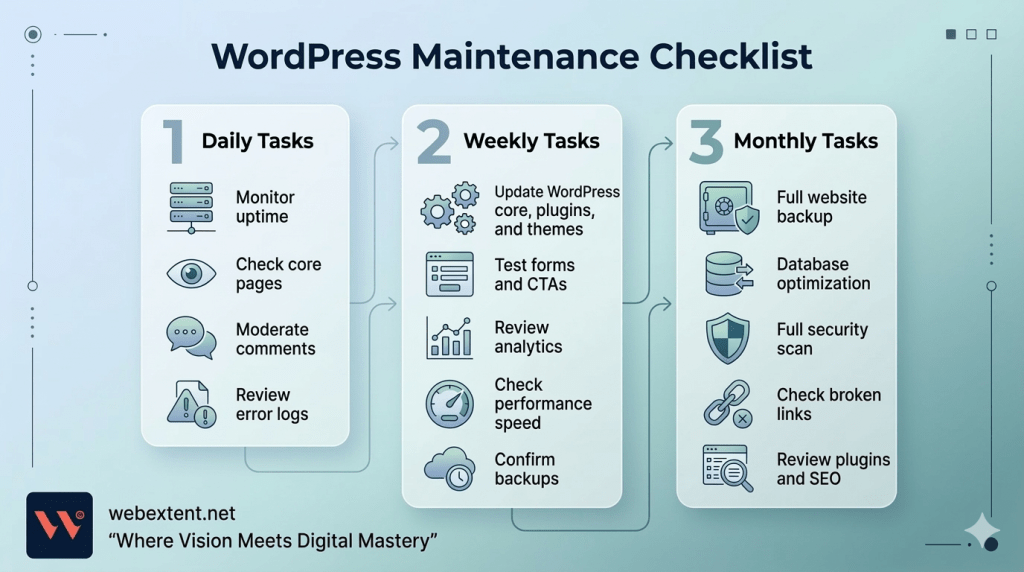
Daily tasks don’t need to take long — often just a few minutes. The goal is to catch problems early before they escalate into bigger issues.
Monitor Website Uptime
Use an uptime monitoring tool to make sure your site is actually online and accessible to visitors. Services like UptimeRobot offer free monitoring and will alert you immediately if your site goes down. You can’t fix a problem you don’t know about.
Check That Core Pages Are Loading Correctly
Visit your homepage, key landing pages, and contact page each day. Look for anything that seems broken — missing images, layout issues, or forms that aren’t responding. A quick visual check only takes a couple of minutes.
Review and Moderate Comments
If your website has a blog or comments section, check for spam and moderate new comments daily. WordPress has built-in comment controls, and plugins like Akismet can help filter spam automatically.
Check for Error Notifications
Look at your website’s error logs or any notifications from your hosting provider or monitoring tools. Catching a PHP warning or plugin conflict early can save hours of troubleshooting later.
Weekly WordPress Maintenance Tasks
Weekly tasks go a little deeper. These are the checks that keep your site updated, functional, and well-performing on a consistent basis.
Update WordPress Core, Plugins, and Themes
WordPress regularly releases updates for its core software. Plugin and theme developers do the same. These updates often include critical security patches. Log into your dashboard weekly and apply any available updates. Before updating, always make sure you have a recent backup.
Test All Contact Forms and Calls to Action
Submit a test entry through every form on your website. It’s surprisingly common for forms to stop working silently — whether due to an email configuration issue, a plugin conflict, or a failed reCAPTCHA setup. If a form is broken and you don’t know it, you could be missing enquiries from potential customers.
Review Google Analytics or Your Analytics Dashboard
Take a few minutes each week to look at your traffic data. Are visitor numbers dropping suddenly? Has your bounce rate increased? These changes can signal a technical problem, a Google algorithm update, or content that’s no longer resonating with your audience.
Check Website Performance Speed
Run your website through a speed testing tool like Google PageSpeed Insights or GTmetrix. A sudden drop in performance scores can indicate a new plugin conflict, large unoptimised images, or a server issue that needs attention.
Back Up Your Website
Even if you have automated backups set up, it’s good practice to confirm they’re running correctly each week. Verify that both your database and website files are being backed up and stored safely — ideally in an off-site or cloud location.
Monthly WordPress Maintenance Tasks
Monthly tasks are more thorough and give you the opportunity to assess the overall health of your website in a more structured way.
Perform a Full Website Backup and Verify It
Take a complete manual backup of your website at the end of each month and verify that the backup can actually be restored. An untested backup is not a reliable backup.
Optimise Your WordPress Database
Over time, your WordPress database accumulates unnecessary data — post revisions, deleted items, spam comments, and transient data. Use a plugin like WP-Optimize to clean and optimise your database. This helps your website load faster and keeps the database size manageable. To understand how your database is structured and why this matters, take a look at our article on WordPress Database Structure Explained.
Run a Full Security Scan
Use a security plugin like Wordfence or Sucuri to run a comprehensive scan of your website files. Look for malware, suspicious code, or unauthorised file changes. A monthly scan gives you confidence that your site remains clean.
Check for Broken Links
Broken links create a poor experience for visitors and can negatively affect your SEO. Use a tool like Broken Link Checker to scan your site and fix or remove any links that no longer work.
Review and Audit Your Plugins
Go through your installed plugins and ask yourself: is each one still necessary? Deactivate and delete any plugins that are no longer in use. Unused plugins are a common security risk because they may contain vulnerabilities even when deactivated.
Check SEO and Sitemap Health
Log into your Google Search Console account and check for any crawl errors, manual actions, or indexing issues. Confirm that your sitemap is being submitted correctly and that your most important pages are indexed.
WordPress Security Maintenance
Security is one of the most important aspects of any WordPress maintenance checklist. WordPress websites are frequently targeted by automated bots and hackers, particularly when running outdated software or using weak login credentials.
Here are the key security practices to maintain on an ongoing basis:
- Keep WordPress core, themes, and plugins updated at all times.
- Use strong, unique passwords for all user accounts and your hosting panel.
- Enable two-factor authentication (2FA) wherever possible.
- Install a reputable security plugin that provides firewall protection and login monitoring.
- Limit login attempts to block brute force attacks.
- Remove or deactivate any user accounts that are no longer active.
- Use an SSL certificate to encrypt data transmitted between your website and its visitors.
Understanding your website’s file structure is also important when it comes to security. Knowing where key files are located and what each one does helps you identify anything that looks out of place. Our article on WordPress File Structure Explained is a helpful starting point.
Performance and SEO Maintenance
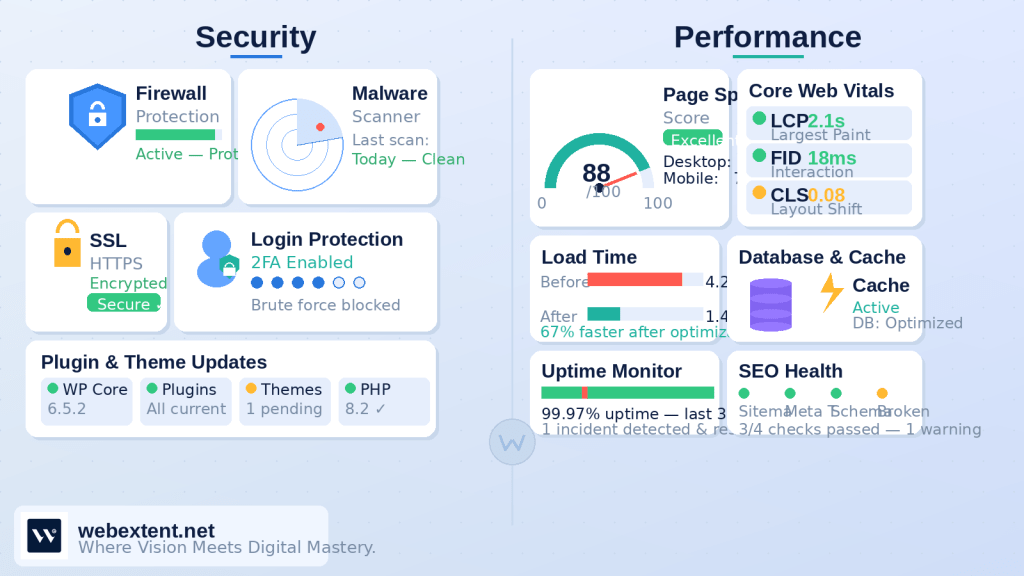
A website that loads slowly loses visitors. Research consistently shows that users abandon pages that take more than a few seconds to load — and search engines take note of that. Performance and SEO maintenance go hand in hand.
Speed Optimisation
Regularly check your page load times and look for opportunities to improve them. Common improvements include compressing images before uploading, enabling browser caching, using a content delivery network (CDN), and minimising CSS and JavaScript files.
Core Web Vitals
Google’s Core Web Vitals are a set of measurements that assess the user experience of your pages — how quickly the main content loads, how responsive the page is to interactions, and how stable the layout is as it loads. Monitor these monthly through Google Search Console.
Content and Keyword Freshness
Review older blog posts and key pages periodically. Update statistics, refresh content that’s become outdated, and ensure your target keywords are still naturally included. Fresh, relevant content signals to search engines that your website is actively maintained.
Challenges of Managing WordPress Maintenance Alone
If you’ve read through this WordPress maintenance checklist, you may have noticed that it covers quite a lot of ground. For business owners who are already managing a full workload, finding the time and technical expertise to handle all of these tasks consistently is a real challenge.
Here are some common pain points:
- Updates can sometimes break functionality, particularly when plugins conflict with each other or with the WordPress core.
- Security threats evolve quickly, and staying ahead of them requires knowledge and constant attention.
- Database optimisation and server-level tasks require technical familiarity that many business owners simply haven’t had time to develop.
- Forgetting to run a backup before a major update can lead to data loss that’s difficult or impossible to recover from.
None of this is meant to discourage you — it’s simply the reality of running a website at a professional standard. The good news is that you don’t have to manage all of this on your own.
How WebExtent Helps Businesses Maintain Their WordPress Websites
WebExtent is a web development and digital agency that works with businesses to keep their WordPress websites running smoothly, securely, and at their best. Rather than leaving website maintenance as an afterthought, WebExtent treats it as an ongoing partnership.
Here’s what a managed maintenance service from WebExtent typically includes:
- Regular updates to WordPress core, themes, and plugins — with compatibility checks to prevent conflicts.
- Scheduled backups stored securely, so your data is protected even in a worst-case scenario.
- Proactive security monitoring to detect and address threats before they cause damage.
- Performance optimisation to keep your website loading quickly for visitors.
- Database maintenance and cleanup to keep your site lean and efficient.
- Monthly reporting so you always know the current health status of your website.
- Responsive support when something does go wrong — so you’re not left trying to diagnose a technical problem on your own.
For many businesses, handing over WordPress maintenance to a team of professionals isn’t just a convenience — it’s a smart investment in the reliability and security of an asset that directly affects their reputation and revenue.
| WebExtent WordPress Maintenance: If you’d like to learn more about how WebExtent can take care of your website, visit the WebExtent WordPress Maintenance Service page for details on what’s included and how to get started. |
Frequently Asked Questions
How often should I update my WordPress plugins and themes?
You should check for plugin and theme updates at least once a week. Security patches can be released at any time, and running outdated software leaves your website exposed to known vulnerabilities. Always take a backup before applying updates.
What is the best way to back up a WordPress website?
The most reliable approach is to use an automated backup plugin — such as UpdraftPlus or BackupBuddy — that stores copies of your files and database in an off-site location, such as Google Drive, Dropbox, or Amazon S3. Manual backups are also useful as a supplement, particularly before major changes.
How do I know if my WordPress website has been hacked?
Warning signs include unusual redirects, unfamiliar user accounts, unexpected changes to content, a sudden drop in Google rankings, or your hosting provider flagging suspicious activity. Running a regular security scan with a plugin like Wordfence will help you detect issues early.
Can I maintain my WordPress website myself, or do I need a professional?
Many business owners manage their own basic maintenance tasks successfully. However, more technical tasks — like database optimisation, server configuration, and recovering from a security incident — often require professional help. If your website is business-critical, working with a maintenance service gives you peace of mind and saves time.
Why is WordPress website speed important for SEO?
Google uses page speed as a ranking factor. Slow websites tend to rank lower in search results and have higher bounce rates because users leave before the page finishes loading. Keeping your website fast through image compression, caching, and regular performance checks helps your SEO and improves the experience for your visitors.
Conclusion
A well-maintained WordPress website is a reliable one. Following a structured WordPress maintenance checklist — covering daily uptime checks, weekly updates, monthly security scans, and ongoing performance monitoring — gives your site the best chance of staying fast, secure, and functional over the long term.
Neglecting maintenance is one of the most common and avoidable causes of website problems for small businesses. The tasks outlined in this guide are achievable if you’re willing to invest the time. But if you’d prefer to focus on running your business while knowing your website is in safe hands, working with a professional maintenance service like WebExtent is a sensible and cost-effective solution.
Your website is often the first impression a potential customer has of your business. It’s worth keeping it in the best possible shape.
Subscribe to Us on YouTube
Get exclusive tutorials, behind-the-scenes content, and expert insights delivered directly to your feed.
We Are Available On:
Facebook:
https://facebook.com/webextent.net/
Instagram:
https://www.instagram.com/webextentofficial/
Twitter (X):
https://twitter.com/WebExtent
Tags: mainenance wordpress wordPress maintenance WordPress support WordPress tips WordPress tricks



0 comments