


If you own a WordPress website, security is not something you can afford to overlook. WordPress powers more than 40% of all websites on the internet — and that popularity also makes it one of the most common targets for hackers, bots, and automated attacks. That is why following a solid WordPress security checklist is one of the smartest things you can do to protect your site.
The good news is that most security threats are completely preventable. That is exactly what this WordPress security checklist is designed to help you with.
Many website owners assume their site is too small to be targeted. Unfortunately, attackers rarely pick victims by hand. Automated bots scan the internet continuously, looking for websites with weak passwords, outdated plugins, or missing security protections. If your website has any of these gaps, it is at risk — regardless of its size.
In this guide, you will find a practical WordPress security checklist with 15 essential steps you can apply right now. Whether you run a personal blog, a small business website, or an e-commerce store, these steps will help you protect your WordPress site, keep visitor data safe, and stay one step ahead of attackers.
Why Every Website Needs a WordPress Security Checklist
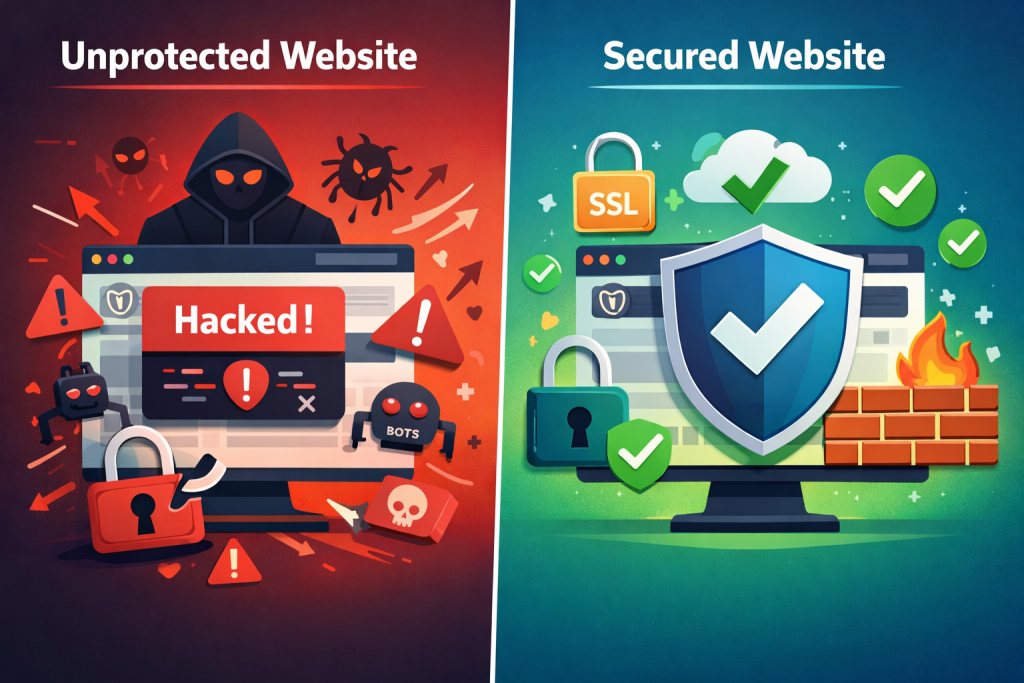
A hacked website is far more than a temporary inconvenience. The damage can affect your visitors, your search rankings, your business reputation, and your revenue — sometimes all at once.
Here is what you risk when WordPress website security is neglected:
- Hackers gaining full administrative control of your website
- Malware infections that damage your files and harm your visitors
- SEO damage from spam link injections or Google blacklisting
- Data leaks that expose sensitive customer or business information
- Website downtime that drives away potential customers
- Loss of customer trust — one of the hardest things to rebuild
These situations happen every single day. A clear WordPress security checklist helps you identify vulnerabilities before attackers find them and gives your website a much stronger foundation.
WordPress Security Checklist: 15 Essential Steps to Secure Your Website
This WordPress security checklist is organized into four key areas so it is easy to work through from start to finish:
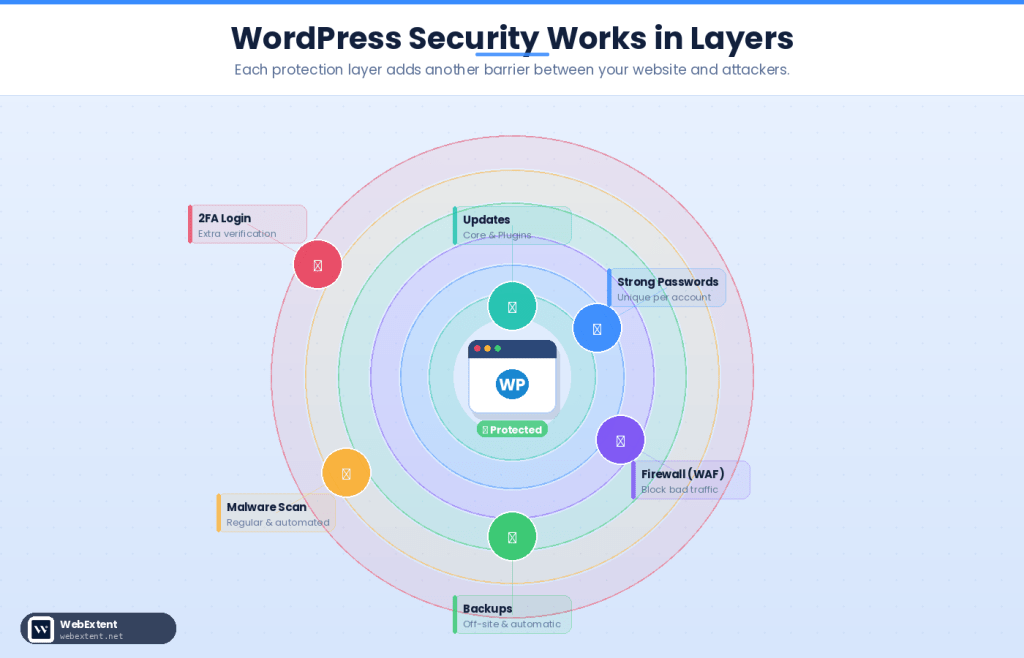
- Basic security practices
- Login page protection
- Website infrastructure security
- Backup and ongoing monitoring
Each area builds on the last. Together, they give your website a layered defence that is far harder for attackers to break through.
WordPress Security Checklist: Basic Security Steps
These four steps form the essential foundation of any WordPress security checklist. Start here before moving on to anything else.
| Keep WordPress Core Updated |
WordPress releases regular updates that include critical security patches. Running an outdated version leaves known vulnerabilities wide open for attackers to exploit.
Always update your WordPress core as soon as a new version is available. This single step closes off a huge number of potential entry points and is one of the easiest WordPress security best practices you can follow.
| Update Plugins and Themes Regularly |
Outdated plugins and themes are among the most common reasons WordPress websites get hacked. Developers push updates specifically to fix security flaws, so ignoring those updates leaves your site exposed.
Set a weekly reminder to check for updates and install them promptly. Staying current with plugins and themes is one of the most effective WordPress security tips you will come across.
| Use Strong and Unique Passwords |
Weak passwords are an open invitation for brute-force attacks. Every account linked to your WordPress website needs a strong, unique password — including:
- Your WordPress admin account
- Your hosting control panel
- Your database login
A strong password combines uppercase letters, lowercase letters, numbers, and symbols. A password manager makes it much easier to create and store secure credentials for every account.
| Remove Unused Plugins and Themes |
Even deactivated plugins and themes can introduce security vulnerabilities. If you are not actively using something, delete it completely.
Keeping your WordPress installation lean reduces your attack surface and makes it easier to maintain. Less code means fewer places for attackers to hide.
WordPress Security Checklist: Protect Your WordPress Login
Your WordPress login page is one of the most actively targeted areas of any website. These steps protect it against brute-force attacks and unauthorized access.
| Enable Two-Factor Authentication (2FA) |
Two-factor authentication adds a second layer of verification on top of your password. Even if an attacker discovers your login credentials, they still cannot access your account without the second verification code.
This is one of the most effective and straightforward ways to protect WordPress site logins. Most WordPress security plugins include a 2FA option.
| Limit Login Attempts |
By default, WordPress allows unlimited login attempts from any IP address. This makes automated brute-force attacks trivially easy to carry out.
Limiting failed login attempts blocks bots from repeatedly guessing passwords. After a set number of failed tries, the IP address is temporarily locked out. This one change can stop a huge volume of automated attacks.
| Change the Default WordPress Login URL |
The standard WordPress login page sits at yourwebsite.com/wp-admin. Since every attacker knows this URL, it is one of the first places bots target.
Changing your login URL to something custom makes it significantly harder for bots to even find your login page. This is a small change with a surprisingly strong impact on your WordPress website security.
| Disable XML-RPC If You Do Not Need It |
XML-RPC is a built-in WordPress feature that allows external apps to communicate with your site. Most website owners do not use it — but attackers do, because it can be exploited to launch large-scale brute-force attacks.
If you do not rely on XML-RPC for a specific integration, disable it. Removing this entry point eliminates one more way attackers could try to get in.
WordPress Security Checklist: Protect Your Website Infrastructure
These steps protect the core systems your WordPress website depends on. Think of them as reinforcing the walls and roof of your site.
| Install a WordPress Security Plugin |
A good WordPress security plugin monitors your site for threats, blocks suspicious traffic, and alerts you when something looks wrong. It automates many of the tasks in this checklist and works in the background around the clock.
Three of the most trusted WordPress security plugins are:
- Wordfence — firewall, malware scanner, real-time traffic monitoring
- Sucuri — DNS-level firewall, malware detection, blacklist monitoring
- iThemes Security — brute-force protection, file change detection, 2FA
Choose one well-configured plugin rather than stacking several that could conflict with each other.
| Use an SSL Certificate for Secure Connections |
An SSL certificate encrypts the data travelling between your website and its visitors. Without it, that data can be intercepted by third parties.
SSL also improves visitor trust, displays the padlock icon in browsers, and is a confirmed search engine ranking factor. Most hosting providers offer free SSL certificates through Let’s Encrypt, so there is no reason not to have one installed.
| Enable a Web Application Firewall (WAF) |
A web application firewall filters all incoming traffic to your website and blocks malicious requests before they can cause any damage. It guards against common attack types such as:
- SQL injection — attackers inserting malicious database commands
- Cross-site scripting (XSS) — injecting harmful scripts into web pages
- Malicious bot traffic targeting your login page or forms
Many WordPress security plugins include a built-in WAF. For stronger protection, a DNS-level firewall like Cloudflare filters traffic before it even reaches your server.
| Secure the wp-config.php File |
Your wp-config.php file contains your most sensitive WordPress configuration details, including database credentials and security keys. If this file is compromised, attackers can gain full control of your database.
You can protect it by moving it to a directory level above your WordPress root, or by adding rules in your .htaccess file to block direct access. This is a technical but important part of protecting your WordPress site.
WordPress Security Checklist: Backup and Monitoring
Even with strong protections in place, things can still go wrong. These final steps make sure you can recover quickly and catch problems before they escalate.
| Set Up Automatic WordPress Backups |
A recent backup is your ultimate recovery tool. If your website is hacked, corrupted, or accidentally damaged, a clean backup lets you restore it quickly with minimal disruption.
Schedule automatic daily or weekly backups and store them in a secure off-site location such as cloud storage. Never rely solely on backups stored on your hosting server — if the server is compromised, those backups may be too.
| Run Regular Malware Scans |
Malware can sit quietly on a website for weeks before anyone notices it. During that time it can steal data, infect visitors, or damage your search engine rankings without any obvious warning signs.
Running regular malware scans catches infections early so you can remove them before serious harm is done. Most WordPress security plugins allow you to schedule automated scans and will notify you immediately if something suspicious is found.
| Monitor WordPress Website Activity |
Reviewing your website activity logs regularly helps you spot unusual behaviour before it becomes a serious problem. Some warning signs to watch for include:
- Multiple failed login attempts from the same IP address
- Unexpected changes to core WordPress files
- New admin accounts that you did not create
- Unusual spikes in traffic at odd hours
Catching these early signals can be the difference between a minor incident and a full security breach.
Best Plugins to Strengthen Your WordPress Security Checklist
The right WordPress security plugins make it much easier to maintain a consistent level of protection. Here are three of the most widely trusted options in the WordPress community:
Wordfence
Wordfence is one of the most downloaded WordPress security plugins available. It includes an endpoint firewall, a malware scanner, live traffic monitoring, and robust login security features. The free version is powerful on its own, while the premium version adds real-time threat intelligence and faster updates.
Sucuri
Sucuri is a specialist website security platform trusted by businesses worldwide. It offers DNS-level firewall protection, malware scanning, post-hack cleanup assistance, and continuous blacklist monitoring. Sucuri is an excellent choice for anyone who wants enterprise-grade WordPress website security.
iThemes Security
iThemes Security (formerly Better WP Security) focuses on hardening your WordPress installation against common attack vectors. Key features include brute-force protection, two-factor authentication, file change detection, and database backups — all in one approachable interface.
The most important thing is to pick one plugin, configure it properly, and keep it updated. Running multiple security plugins simultaneously can cause conflicts and may actually create new vulnerabilities.
Common Mistakes That Undermine a WordPress Security Checklist
Good intentions are not enough if common errors cancel out your security efforts. Here are the mistakes that most often leave WordPress websites exposed:
- Using nulled themes or plugins: Pirated versions of premium WordPress products often contain hidden malware or backdoors. The short-term saving is never worth the risk.
- Ignoring plugin and theme updates: Every update you skip is a known vulnerability you are leaving open. Outdated plugins are responsible for a significant portion of WordPress hacks.
- Reusing weak passwords: A single data breach elsewhere can give attackers your credentials if you reuse passwords across accounts. Unique passwords for every account are non-negotiable.
- Installing too many plugins: Every plugin adds code to your website. More code means more potential vulnerabilities. Only install plugins you actively need from reputable developers.
- Choosing poor-quality hosting: Your hosting provider is a critical layer of your website’s security. Budget hosting with weak server-level protections can undermine everything else in this checklist.
How WebExtent Helps You Complete Your WordPress Security Checklist
Working through this WordPress security checklist is a great starting point. However, maintaining strong website security is not a one-time task. WordPress websites need consistent updates, regular monitoring, vulnerability checks, and reliable backups — every week, not just occasionally.
For many website owners, keeping up with all of that consistently is genuinely difficult. That is exactly where WebExtent comes in.
WebExtent provides professional WordPress maintenance and website security services that help businesses keep their websites safe, optimized, and running at their best. Whether you manage a business website, an online store, or a blog, WebExtent handles the technical side of WordPress so you can focus on what matters most — running your business.
When you work with WebExtent, you get expert support across all the most important areas of WordPress security and performance:
- WordPress security audits to identify and fix vulnerabilities before attackers find them
- Malware scanning and cleanup to keep your website clean and safe
- Plugin and theme updates applied promptly to close security gaps
- Vulnerability monitoring that watches for new threats affecting your plugins and WordPress version
- Regular automated backups stored safely off-site so your data is always protected
- Continuous website monitoring so any issues are detected and resolved quickly
- Performance optimization to keep your website fast, reliable, and delivering a great user experience
Many website owners start by managing WordPress security themselves, only to find that it takes more time and technical knowledge than expected. With WebExtent managing your WordPress maintenance and security, you can have complete confidence that your website is in expert hands.
If you want professionals to handle your WordPress security so you never have to worry about it, partnering with WebExtent is one of the best decisions you can make for your website.
Quick WordPress Security Checklist Summary
Here is a quick overview of all 15 steps in your WordPress security checklist. Use this as a fast reference whenever you need to review your security setup:
- Keep WordPress core updated
- Update plugins and themes regularly
- Use strong and unique passwords for all accounts
- Remove unused plugins and themes
- Enable two-factor authentication (2FA)
- Limit login attempts to block brute-force attacks
- Change the default WordPress login URL
- Disable XML-RPC if you do not need it
- Install a trusted WordPress security plugin
- Use an SSL certificate for encrypted connections
- Enable a web application firewall (WAF)
- Secure the wp-config.php file
- Set up automatic off-site WordPress backups
- Run regular malware scans
- Monitor WordPress website activity logs
Conclusion: Protect Your Website With This WordPress Security Checklist
WordPress security is not something you can set up once and forget. Threats evolve, new vulnerabilities emerge, and attackers are always looking for the next weak point to exploit. Staying secure means staying consistent.
By following this WordPress security checklist, you give your website a strong, layered defence that addresses the most common attack vectors. Start with the foundational steps — keep WordPress updated, use strong passwords, and remove anything you are not using. Then move on to securing your login, hardening your infrastructure, and setting up reliable backups and monitoring.
Every step you complete makes your website harder to compromise and gives you greater peace of mind.
If you would prefer to have experts handle your WordPress maintenance and security, WebExtent offers professional services that cover every item in this checklist and more. From vulnerability checks and malware scanning to plugin updates and performance optimization, WebExtent keeps your website safe and running smoothly so you can focus on your business.
Do not wait for a security incident to take action. Apply this WordPress security checklist today and give your website the protection it deserves.
Need help implementing this checklist? Contact WebExtent today for a professional WordPress security audit and ongoing maintenance support.
Subscribe to Us on YouTube
Get exclusive tutorials, behind-the-scenes content, and expert insights delivered directly to your feed.
We Are Available On:
Facebook:
https://facebook.com/webextent.net/
Instagram:
https://www.instagram.com/webextentofficial/
Twitter (X):
https://twitter.com/WebExtent
Tags: security plugin website security WordPress Security wordpress security tips


0 comments